
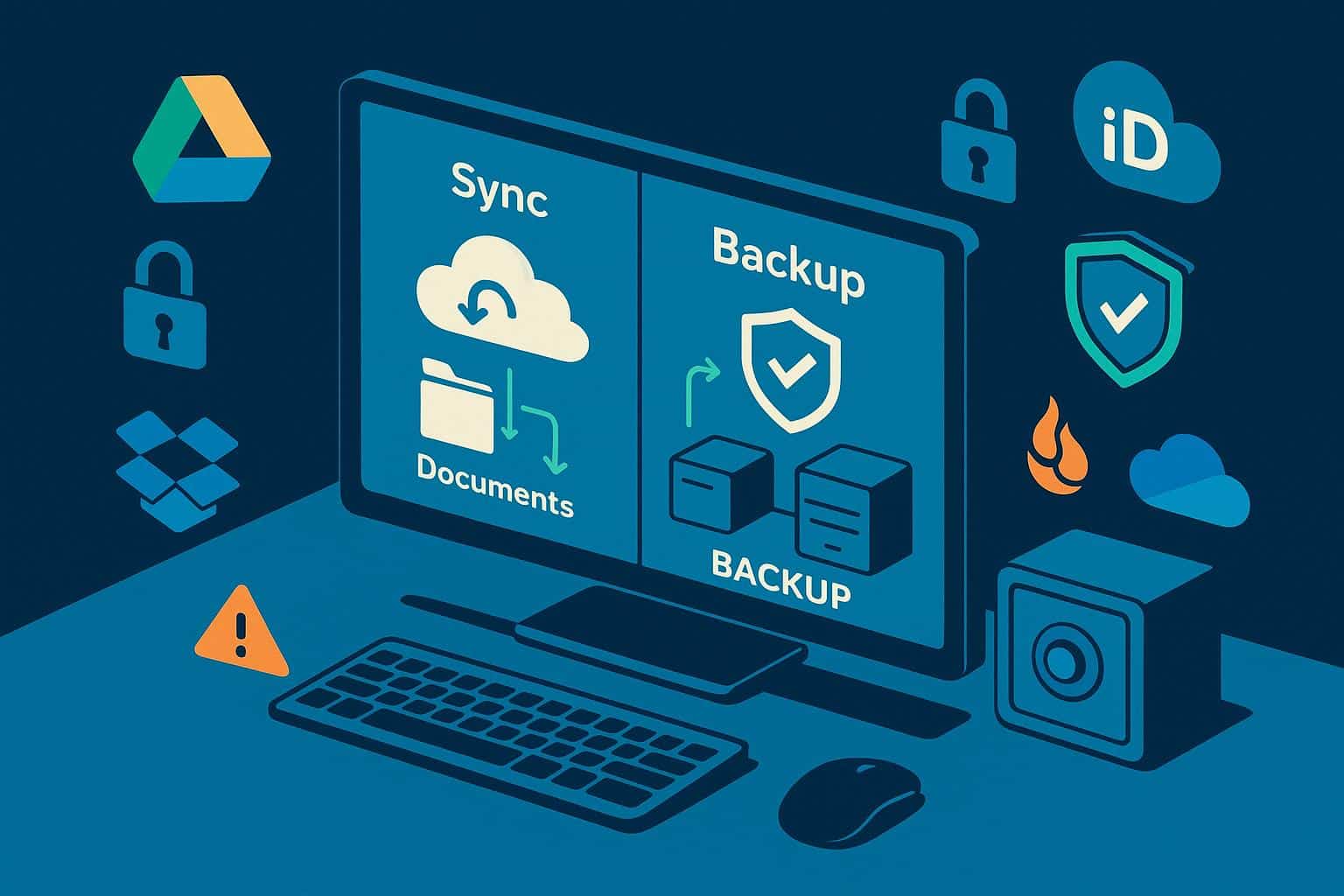
Cloud storage and cloud backup are two technologies that help people manage digital information, but they serve different purposes. Although both involve storing data on remote servers, they are not interchangeable.
Cloud storage is primarily designed to make files accessible, synchronise information between devices and support collaboration. Cloud backup, on the other hand, focuses on protecting information against accidental deletion, hardware failure, corruption, ransomware and other forms of data loss.
Understanding the difference is important because using a cloud storage service does not automatically mean your information is safely backed up.
For example, imagine you store important business documents in a cloud storage folder that synchronises with your laptop. If you accidentally delete a document, that deletion may also synchronise across your connected devices. Depending on the service and its retention settings, you might be able to recover the file, but recovery is not guaranteed indefinitely.
A dedicated cloud backup system is designed to preserve recoverable copies of information, often with configurable backup schedules, retention periods and restoration options.
This guide explains how cloud storage and cloud backup work, their advantages and limitations, common use cases, security considerations and how to choose the right solution.
What Is Cloud Storage?
Cloud storage is a service that allows users to save digital files on remote infrastructure and access them through the internet.
Instead of keeping every file exclusively on a computer, smartphone or external drive, users can upload information to storage systems operated by a cloud provider.
Common examples include Google Drive, Microsoft OneDrive, Dropbox and Apple iCloud Drive.
These services typically allow users to upload documents, photographs, videos and other files, organise them into folders and access them from supported devices.
How Does Cloud Storage Work?
Cloud storage operates through remote servers, network connections, storage management software and user accounts.
When you upload a file, your device transfers its data to the provider’s infrastructure. The service stores the file and associates it with your account.
When you open the file later, the service retrieves the information and delivers it to your device.
Some services also provide file synchronisation.
Synchronisation helps maintain consistent file versions across connected devices. For example, editing a document on your laptop may cause the updated version to appear on your smartphone.
This convenience is one of cloud storage’s most useful features, but it also means unwanted changes can sometimes propagate between devices.
Main Features of Cloud Storage
Cloud storage services commonly provide:
- File synchronisation: Keep selected files updated across devices.
- Remote access: Open files from supported devices and locations.
- File sharing: Share documents using links or account permissions.
- Collaboration: Work on shared files with other users.
- Version history: Recover earlier versions of files where supported.
- Deleted-file recovery: Restore recently deleted files within the provider’s retention limits.
- Storage expansion: Purchase additional capacity when needed.
Not every cloud storage provider offers the same features or retention periods.
Common Uses of Cloud Storage
Cloud storage is useful for students, professionals, businesses and everyday users.
A university student might use it to access coursework from different devices. A photographer might store photographs online for sharing with clients. A business team might collaborate on presentations and spreadsheets.
Cloud storage is especially valuable when accessibility, sharing and collaboration are the main priorities.
What Is Cloud Backup?
Cloud backup is a data protection process that creates recoverable copies of information and stores them using remote infrastructure.
Its main purpose is to help users restore information after an unexpected event.
These events may include hardware failure, accidental deletion, software corruption, device theft, ransomware or other incidents that affect access to important files.
Unlike ordinary file synchronisation, backup systems are designed around preserving data and supporting recovery.
How Does Cloud Backup Work?
A cloud backup service typically uses software to identify the information that needs protection.
The software creates copies of selected files, folders, applications or systems and transfers them to a backup destination.
Depending on the service, backups may run automatically according to a schedule or continuously as changes occur.
A typical process includes:
- Selecting files, folders or systems for protection.
- Creating an initial backup copy.
- Transferring the data to the backup service.
- Running subsequent backups according to the configured schedule.
- Retaining backup versions according to the retention policy.
- Restoring information when needed.
Some backup services support incremental backups, which transfer only data that has changed since a previous backup.
This can reduce the amount of information transferred and stored.
Main Features of Cloud Backup
Cloud backup services may include:
- Automated backup schedules.
- Incremental or differential backups.
- Multiple recovery points.
- Backup retention policies.
- File and folder restoration.
- Device or system recovery.
- Encryption and access controls.
- Backup integrity checks.
- Immutable or protected backup copies.
The available features depend on the provider and the service plan.
Common Uses of Cloud Backup
Cloud backup is especially important when losing information would cause significant inconvenience, financial damage or operational disruption.
For example, a small business may back up accounting records, customer information and essential documents.
A photographer may preserve original image files and completed projects.
An individual may back up family photographs, personal documents and other information that would be difficult or impossible to recreate.
Cloud Storage vs Cloud Backup: Key Differences
Although both services use remote infrastructure, their design priorities differ.
| Feature | Cloud Storage | Cloud Backup |
|---|---|---|
| Primary purpose | Access and share files | Protect and restore data |
| File synchronisation | Common | Not the main function |
| Automatic backups | Not always | Usually supported |
| Version history | Often limited by plan or policy | Commonly configurable |
| Deleted-file recovery | Usually time-limited | Based on retention settings |
| Full-device recovery | Not usually the main feature | Available in some services |
| Collaboration | Common | Usually limited |
| Ransomware recovery | Depends on available versions | Can provide protected recovery points |
| Best suited for | Everyday file access | Data protection and recovery |
The distinction is not absolute. Some cloud storage services offer sophisticated recovery features, while some backup platforms provide file access and sharing.
The most important question is whether the service can reliably restore the information you need after a realistic data-loss incident.
Cloud Storage vs Cloud Backup: How They Handle File Deletion
File deletion is one of the clearest ways to understand the difference.
Imagine that you maintain a folder containing important business documents.
The folder is synchronised between your laptop and a cloud storage service.
If you delete a document on your laptop, the synchronisation service may also remove it from the cloud folder and other connected devices.
Many storage services provide a recycle bin or deleted-file recovery feature. However, deleted files are usually retained only for a limited period.
Once that period expires, recovery may no longer be possible.
A properly configured backup service can retain earlier copies independently of the synchronised folder.
If the document is accidentally deleted, you may be able to restore it from a backup created before the deletion.
However, backup recovery still depends on retention policies, successful backup completion and the integrity of the stored copies.
Cloud Storage vs Cloud Backup: Protection Against Ransomware
Ransomware is malicious software that can encrypt files, disrupt systems or make information inaccessible.
Some ransomware incidents also involve attackers stealing information or attempting to destroy backups.
Can Cloud Storage Protect Against Ransomware?
Cloud storage can provide some recovery options, particularly when file version history and deleted-file restoration are available.
However, if ransomware encrypts files in a synchronised folder, the encrypted versions may also be uploaded to the cloud.
The ability to recover depends on whether unaffected versions remain available and whether the attacker has compromised the account or its recovery controls.
Cloud storage should therefore not be treated as a complete ransomware protection strategy.
How Can Cloud Backup Help?
A well-designed backup system can preserve recovery points created before an attack.
Features such as immutable storage, separate administrative credentials and protected retention policies can reduce the risk of attackers modifying or deleting backup copies.
For example, a business affected by ransomware may restore information from a clean recovery point after the compromised systems have been secured.
However, restoring a backup does not automatically remove malware, resolve the original security weakness or address any information stolen during the incident.
Backup systems should be part of a wider cybersecurity strategy.
What Is the Difference Between File Syncing and Backing Up?
File synchronisation and backup are sometimes confused because both can transfer data automatically.
However, they operate differently.
File Synchronisation
Synchronisation is designed to keep files consistent across locations.
When a file changes on one connected device, the updated version may be copied to other devices.
This makes synchronisation useful for collaboration and everyday file access.
However, unwanted changes can also spread.
File Backup
Backup is designed to preserve information for recovery.
Instead of simply maintaining the latest version, backup systems may retain several earlier versions or recovery points.
These copies can help users recover information after accidental deletion, corruption or other incidents.
A useful way to remember the distinction is:
Synchronisation keeps files current. Backup helps recover files when something goes wrong.
Types of Cloud Backup
Cloud backup can protect different types of information and systems.
File-Level Backup
File-level backup protects selected documents, photographs, videos and other files.
This is often suitable for individuals and small businesses that need to protect important folders.
System Image Backup
A system image backup captures a broader representation of a computer or server, potentially including the operating system, applications, settings and files.
It can support recovery after serious hardware or software failures.
However, not every cloud backup service provides full system image recovery.
Application Backup
Application backup focuses on information associated with specific software systems.
For example, an organisation might back up databases, business applications or collaboration platforms.
Application-aware backup tools may coordinate with software to create consistent recovery points.
Database Backup
Database backup protects structured information stored in database systems.
Depending on the technology, backups may include complete database copies, transaction logs or incremental changes.
Database recovery requires careful planning because restoring files alone may not produce a consistent database state.
Full, Incremental and Differential Backups
Backup services may use different methods to protect information.
Full Backup
A full backup creates a copy of all selected data.
It provides a complete backup set but can require substantial storage space and transfer time.
Incremental Backup
An incremental backup copies information that has changed since the previous backup of the relevant type.
This reduces the amount of data transferred during subsequent backup operations.
Restoration may require the original full backup and the relevant incremental backup chain, depending on the system.
Differential Backup
A differential backup copies information that has changed since the last full backup.
Differential backups generally become larger as more information changes after the full backup.
They can simplify restoration compared with some incremental backup arrangements.
Advantages of Cloud Storage
Cloud storage offers several benefits for people who need convenient access to digital information.
Access Files from Different Devices
Users can open supported files from laptops, smartphones, tablets and other devices.
This is especially useful for people who work from different locations.
Easy File Sharing
Cloud storage platforms commonly allow users to share documents through links or account permissions.
This can reduce the need to send large email attachments.
Collaboration Features
Some platforms support real-time document editing, comments and shared workspaces.
These features are useful for teams and group projects.
Flexible Storage Capacity
Many providers allow customers to increase storage capacity without purchasing additional local hardware.
Reduced Dependence on One Device
Files stored remotely may remain accessible if a laptop or smartphone is lost or damaged.
However, users still need to maintain account access and understand the service’s recovery limitations.
Disadvantages of Cloud Storage
Cloud storage also has limitations.
Synchronised Errors
Accidental changes, corrupted files and unwanted deletions may spread between connected devices.
Internet Dependency
Access to files that are not stored locally may require a working internet connection.
Storage Limits
Free plans commonly include capacity restrictions, while additional storage may require payment.
Account Security Risks
Weak passwords, phishing and compromised accounts can expose stored information.
Limited Recovery Options
Deleted-file retention and version history vary between providers and subscription plans.
For these reasons, important information should not rely solely on ordinary cloud synchronisation.
Advantages of Cloud Backup
Cloud backup focuses on data recovery and protection.
Recovery After Data Loss
Backup systems can help restore information lost through hardware failure, accidental deletion or corruption.
Automated Protection
Scheduled backups reduce the need to remember to copy important files manually.
Historical Recovery Points
Backup retention can allow users to restore earlier versions of information.
Offsite Data Protection
Remote backup copies can help protect against local incidents such as theft, fire or equipment damage.
Business Continuity Support
Backup and recovery processes can help organisations resume operations after certain types of disruption.
However, recovery speed depends on the amount of data, available bandwidth and the backup system’s capabilities.
Disadvantages of Cloud Backup
Cloud backup also requires planning and ongoing management.
Backup Storage Costs
Large amounts of protected data and long retention periods can increase storage expenses.
Restoration Time
Recovering large datasets through an internet connection can take considerable time.
Configuration Requirements
Users need to select appropriate backup schedules, data sources and retention policies.
Incomplete Backups
A backup may fail or exclude important information if it is configured incorrectly.
Security Responsibilities
Backup accounts, encryption keys and recovery systems need appropriate protection.
Regular restoration testing is essential to confirm that the backup process actually works.
Cloud Storage vs Cloud Backup: Which Is Better for Personal Use?
The right choice depends on what you want to achieve.
Cloud storage is useful when you want to access photographs, documents and other files from multiple devices.
It is also convenient when sharing information with friends, family members or colleagues.
Cloud backup is more appropriate when your priority is preserving information that would be difficult to replace.
For example, family photographs, financial records and important personal documents may deserve a separate backup strategy.
Many individuals benefit from using both services.
Cloud storage provides convenient everyday access, while backup offers additional recovery protection.
Cloud Storage vs Cloud Backup for Small Businesses
Small businesses often need both collaboration and data protection.
Employees may use cloud storage to share documents and work together.
At the same time, the business may need dedicated backups to protect accounting information, customer records, project files and other important data.
Before choosing a backup solution, a business should identify:
- Which information is essential.
- How frequently the information changes.
- How much data loss it can tolerate.
- How quickly information must be restored.
- How long backup copies must be retained.
- Which security and regulatory requirements apply.
These considerations help determine the appropriate backup schedule, retention policy and recovery process.
For example, a business that updates customer records throughout the day may require more frequent backups than one that stores documents that rarely change.
Understanding RPO and RTO
Two important concepts in backup planning are Recovery Point Objective (RPO) and Recovery Time Objective (RTO).
Recovery Point Objective (RPO)
RPO describes the maximum amount of data loss an organisation considers acceptable, measured in time.
For example, if a business has an RPO of four hours, its recovery arrangements should be designed to avoid losing more than approximately four hours of data following a relevant incident.
The backup frequency and recovery capabilities must support that objective.
Recovery Time Objective (RTO)
RTO describes the target time within which a service or system should be restored after disruption.
For example, a business with an RTO of two hours aims to restore the affected service within that period.
Achieving a short RTO may require faster recovery infrastructure, automated processes and regular testing.
RPO and RTO help businesses select backup and disaster recovery solutions based on operational needs rather than storage capacity alone.
What Is the 3-2-1 Backup Rule?
The 3-2-1 backup rule is a widely used guideline for protecting important information.
It recommends maintaining:
- 3 copies of your data: The original and two backup copies.
- 2 different storage media or systems: Reduce dependence on one type of storage.
- 1 offsite copy: Protect against incidents affecting the primary location.
For example, a person might keep original files on a computer, a backup on an external drive and another backup in a cloud service.
Modern backup strategies may extend this approach by including immutable or offline copies and regularly verified recovery processes.
The important principle is to avoid relying on one device, one account or one storage system for irreplaceable information.
How to Choose a Cloud Storage Service
When selecting cloud storage, consider how you plan to use your files.
Storage Capacity
Estimate how much space you need for documents, photographs, videos and other information.
Device Compatibility
Check whether the service supports your computers, smartphones and operating systems.
File Sharing
Review the available sharing permissions and collaboration features.
Version History
Find out whether earlier file versions can be restored and how long they are retained.
Security Features
Look for strong authentication, encryption, access controls and account recovery options.
Pricing
Compare free allowances, subscription costs and additional storage options.
How to Choose a Cloud Backup Service
Choosing a backup service requires greater attention to recovery capabilities.
Backup Frequency
Determine whether backups should run continuously, hourly, daily or according to another schedule.
Retention Period
Check how long historical backups are preserved.
Recovery Options
Understand whether the service supports individual file restoration, folder recovery or full-device recovery.
Ransomware Protection
Consider features such as immutable backups, separate credentials and protected retention policies.
Encryption
Review how information is encrypted and who controls the encryption keys.
Restoration Testing
Confirm that you can test the recovery process before an emergency occurs.
Total Cost
Consider backup storage, retention, data transfer, restoration charges and subscription fees.
Cloud Storage vs Cloud Backup: Can You Use Both?
Yes. In many situations, using both services is the most practical approach.
Cloud storage supports everyday work by making files accessible and easy to share.
Cloud backup adds a separate layer of protection by preserving information for recovery.
For example, a small business might use Microsoft OneDrive to synchronise employee documents and a separate backup platform to retain protected copies of essential information.
If a document is accidentally deleted or damaged, the business may be able to recover it from the backup system.
The two services complement one another because they solve different problems.
Common Mistakes to Avoid
Assuming Syncing Is the Same as Backup
A synchronised folder may reflect unwanted deletions or corrupted files.
Check whether you have independent recovery copies.
Ignoring Backup Retention
A backup is only useful if the required recovery point remains available when needed.
Choose retention settings that match your requirements.
Using the Same Credentials Everywhere
If attackers gain access to a primary account, they may also attempt to compromise connected storage and backup systems.
Use strong authentication and appropriate separation of administrative access.
Never Testing Restores
A successful backup notification does not guarantee that every file can be recovered.
Test the restoration process regularly.
Overlooking Costs
Storage capacity, historical versions, data transfer and recovery services may all affect the total price.
Review the pricing structure before committing.
Frequently Asked Questions
Is Google Drive cloud storage or cloud backup?
Google Drive is primarily a cloud storage and collaboration service. It includes features such as file synchronisation, version history and deleted-file recovery, but these should not automatically be treated as a complete backup strategy.
Is OneDrive a backup service?
OneDrive provides cloud storage, synchronisation and certain file recovery features. It can help protect selected files, but its suitability as a backup solution depends on the information being protected and the recovery requirements.
Can cloud storage replace an external hard drive?
Cloud storage can replace some uses of an external drive, particularly for file access and sharing. However, important information may still benefit from separate local and remote backup copies.
Does cloud backup protect against ransomware?
A properly configured backup system can support ransomware recovery, especially when protected or immutable recovery points are available. It does not prevent ransomware infections or eliminate every consequence of an attack.
What happens if I delete a file from cloud storage?
The deletion may synchronise across connected devices. Some services allow deleted files to be restored within a specified retention period.
Is cloud backup automatic?
Many cloud backup services support automatic schedules or continuous protection. Users still need to configure the service and confirm that backups complete successfully.
Do small businesses need cloud backup?
Businesses should assess whether losing their files, customer records or operational information would cause disruption. If important information needs to be recoverable, an appropriate backup strategy is advisable.
What is the biggest difference between cloud storage and cloud backup?
Cloud storage primarily focuses on access, synchronisation and sharing. Cloud backup primarily focuses on preserving recoverable copies of information.
Conclusion
Cloud storage and cloud backup are both important parts of modern data management, but they are designed for different purposes.
Cloud storage makes it easier to access files, share information and collaborate across devices. Cloud backup helps preserve information and provides recovery options when data is lost, corrupted or otherwise becomes unavailable.
For everyday users, cloud storage may provide the convenience needed to manage documents and photographs. For individuals and businesses with important or irreplaceable information, a dedicated backup strategy adds valuable protection.
The most effective approach often involves combining both technologies, applying appropriate security controls and regularly checking that important information can be restored.
Understanding these differences helps you choose services based on what you actually need: convenient access, reliable recovery or a combination of both.
For more technology explanations and practical guides, explore the Technology category at Availity.
Availity – Ideas, Insights and Information.
Leave a Reply